While the Award Force application home page is only briefly seen and used for a few moments, it is one of the most important views in the Award Force application.
Handling registration and login, this page is critical for maintaining program security and integrity. And, as the first page a participant interacts with, sets the tone for the rest of their experience with you.
Designed almost 7 years ago, the home page has fulfilled the expectations it was designed for.
However, listening to our clients and understanding user behaviour, expectations have evolved:
- Clients would like more options for displaying content before registration
- Registration and log in could be more intuitive
- Accessibility of the home page can be better
To better accommodate these expectations, we’ve given the home page a major upgrade. Since some of these changes may impact your program, we wanted to give you some notice, so you can prepare for and take advantage of the new capabilities as soon as they are available.
If you don’t want to read the entire breakdown, and just want to know what needs to be done to prepare— jump to our recommendations.
So what exactly has changed?
Several new changes have been introduced. Including:
- Exciting new layout changes
- The ability for logged-in users to navigate to the home page
- Streamlined registration & login
- Optional display of entry category information
- Optional display of about page content and new menu
Exciting new layout changes
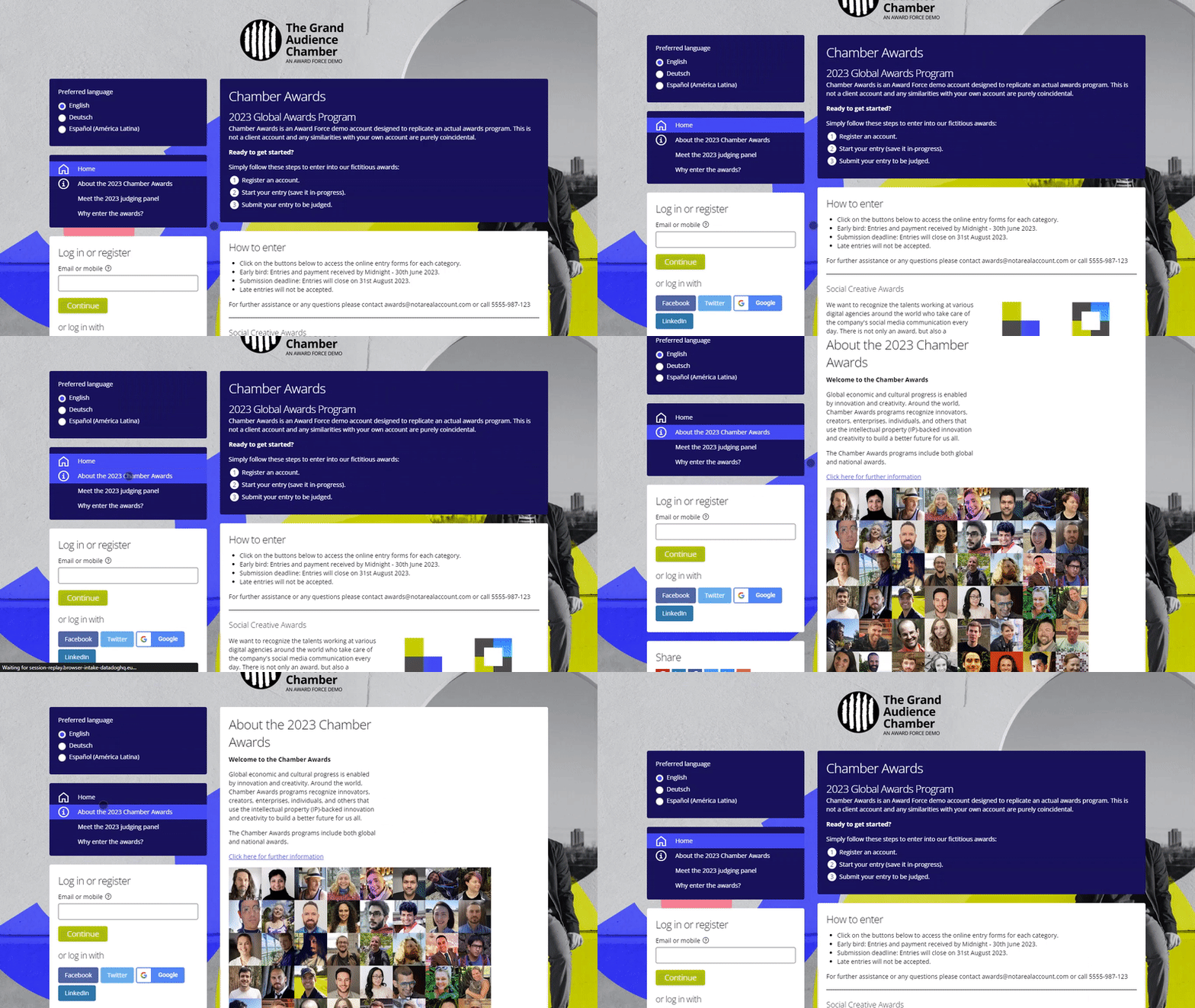
Necessitated by a host of new capabilities, a desire to provide a better mobile experience and cater to users with accessibility requirements, the home page has undergone a major new layout update. Here’s a sneak peek of what that now looks like.
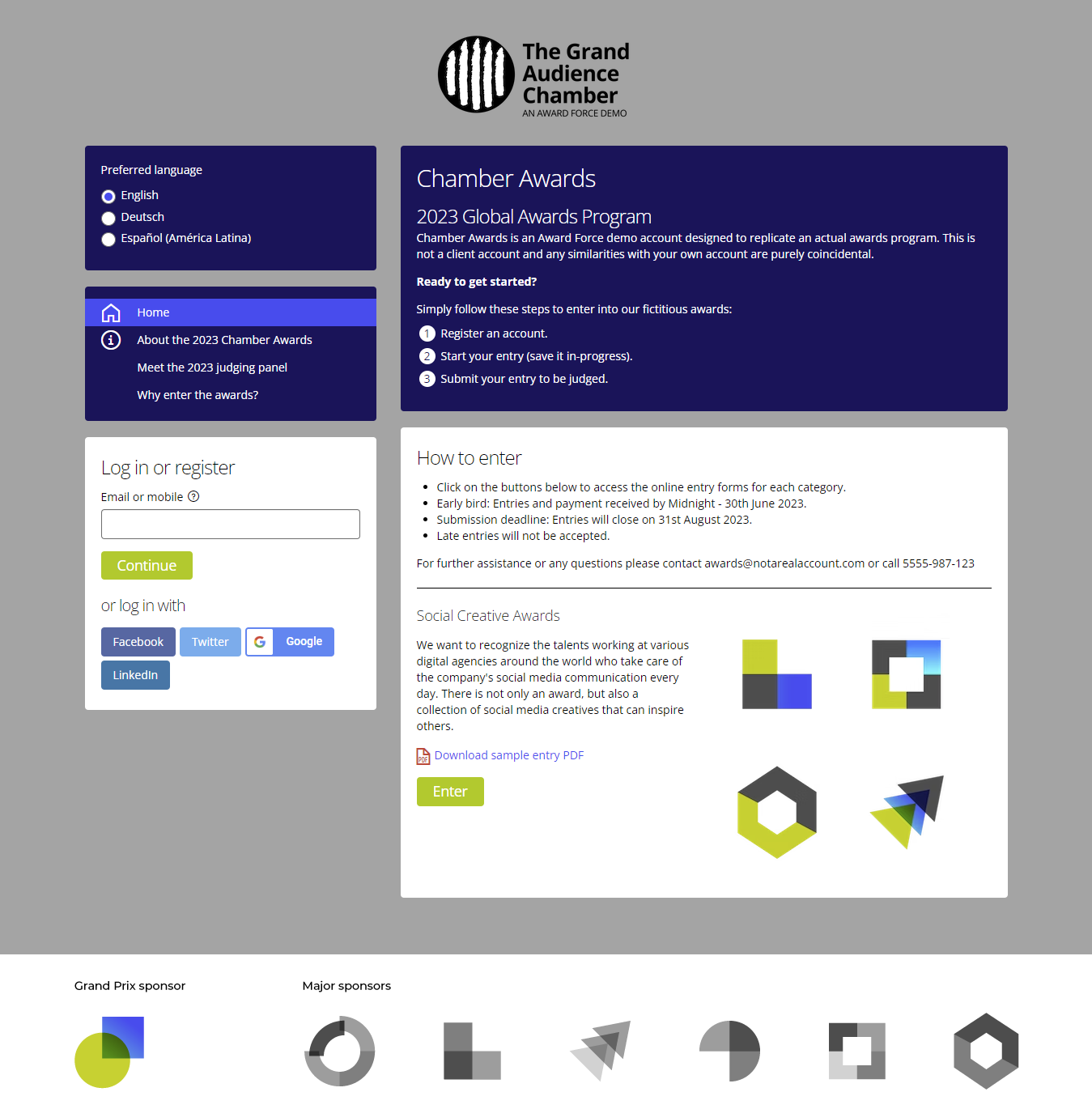

We recommend taking a visual walkthrough of the layout changes in the tour below.
Home page is now navigable by logged in users
You and your program participants can now access the home page of your Award Force platform while logged in. To support that, a new home icon has been added to the top menu, alongside the workspace navigation.
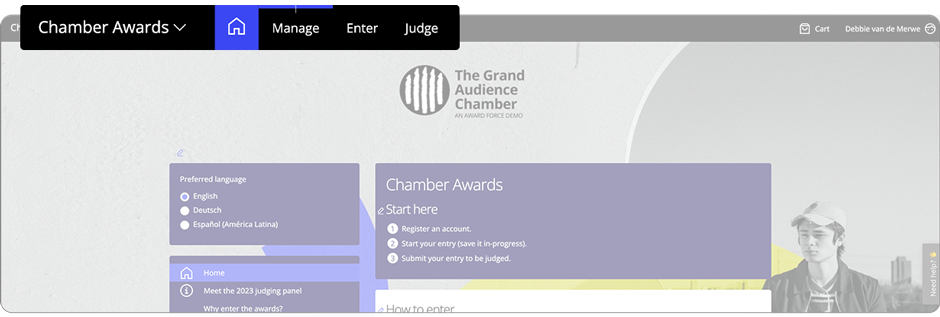
Now you can view what your home page will look like without logging out or checking in a different browser window!
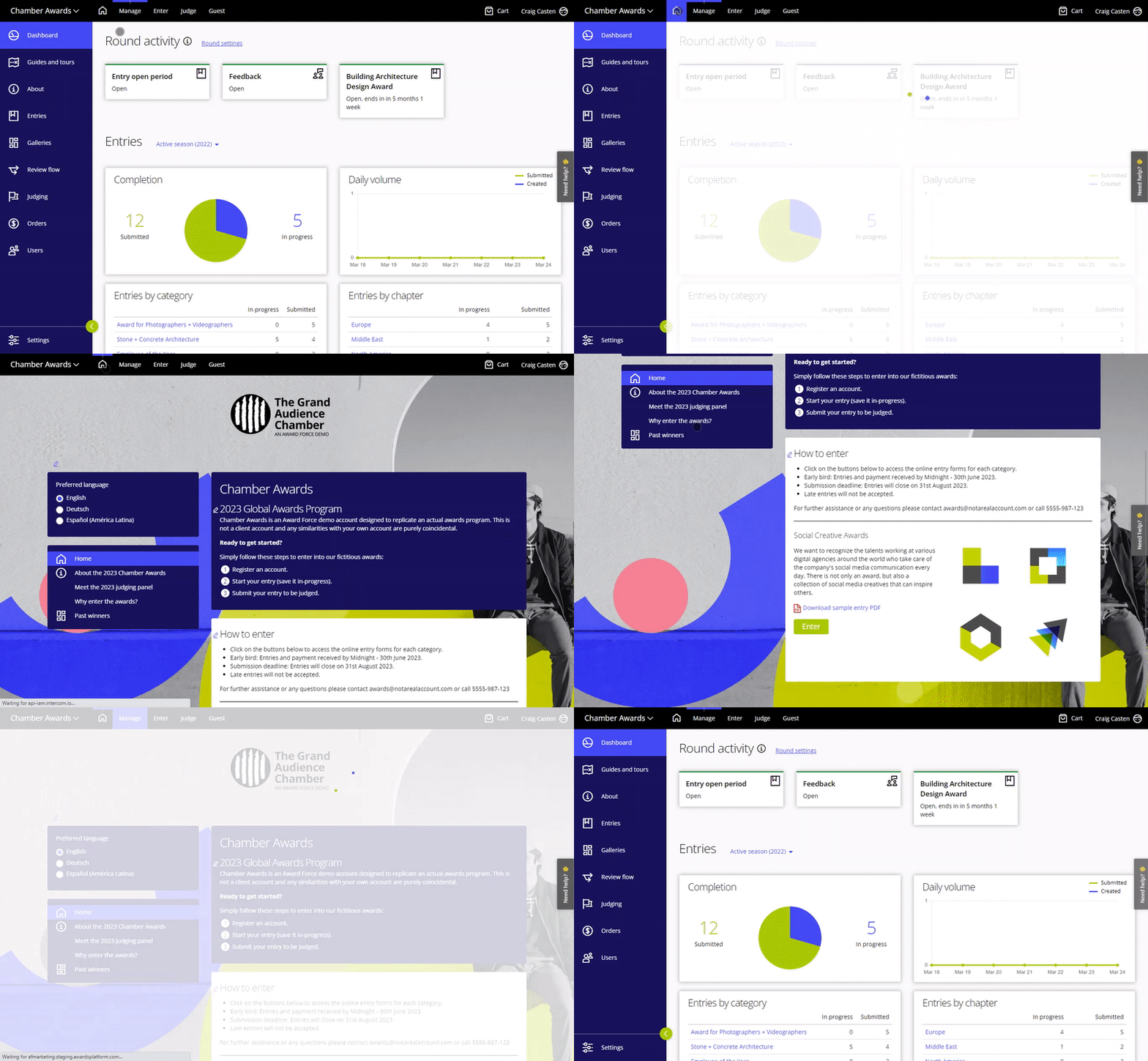
To return to the “logged in” view, you and your users just click the relevant workspace you have access to. For program managers, that’s going to look a bit like this:
Streamlined registration & login
Some smart work from our engineers has eliminated the need for two forms on the homepage and the platform will use a single form to handle both login and registration. This will offer a more intuitive experience for your program participants.
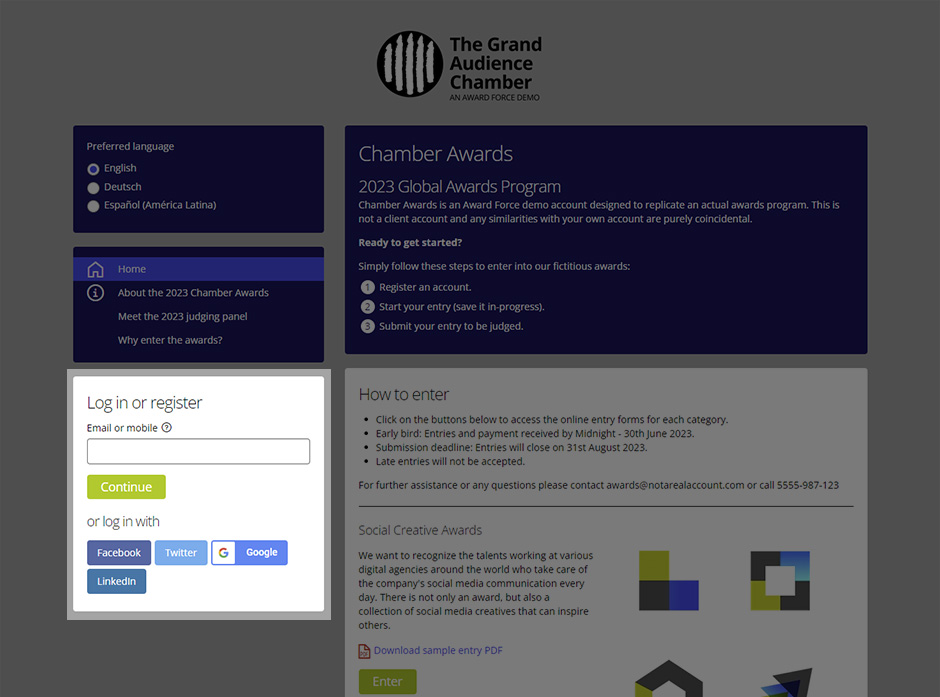
Registration and login walkthrough
Access a walkthrough of the updated registration and login flow by clicking the button below.
Optional display of entry category information
You can now promote your entry categories directly on the home page!
When enabled, the category description and associated sponsor/partner logos can now be displayed on the home page.
You’ll also notice there are two additional features here:
- An “Enter” button, which links directly to the entry form, with the category selected.
- A downloadable PDF of the blank entry form, which can be shown or hidden, depending on your program preference.
Here’s a breakdown of the elements of category promotion on the home page:
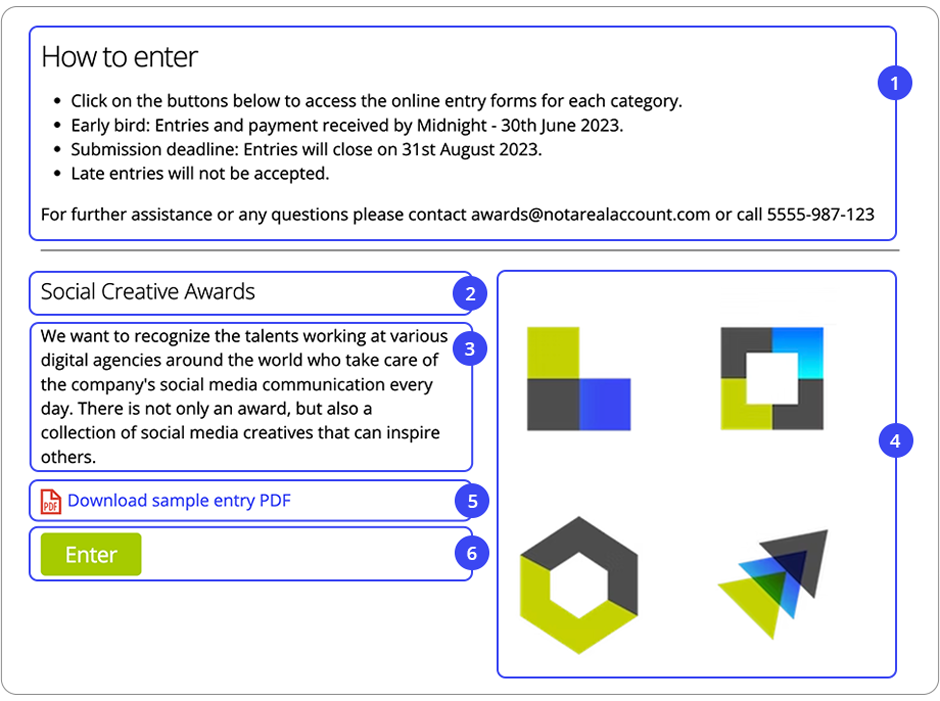
- Home category promotion content block
- Category name
- Category description
- Category sponsor logos or images
- Blank entry form PDF
- Enter button deep link (shareable!)
To promote categories on the home page, simply navigate to the details tab in the category settings and set “Display category on public home page” to “Yes”.
See below for a quick guide:

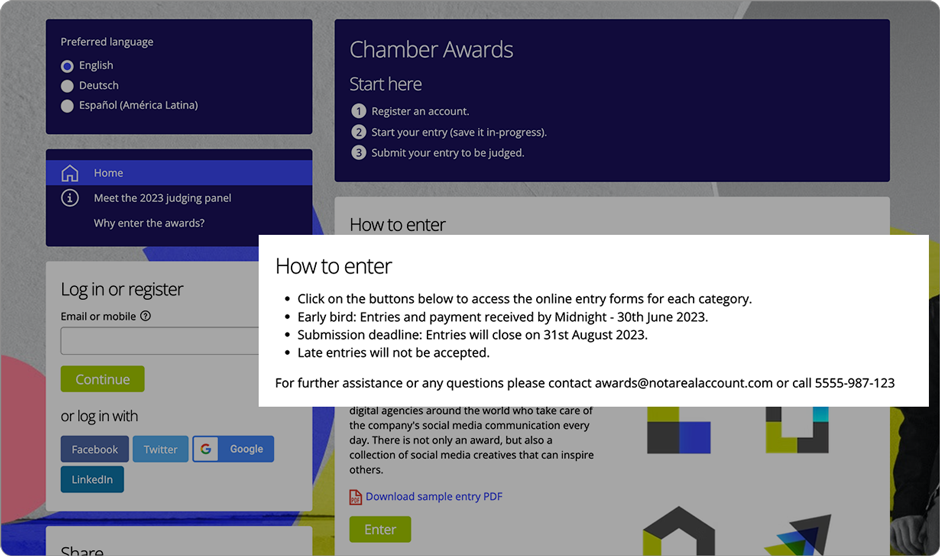
To promote or provide additional information before your list of categories, we’ve introduced a new content block called “Home category promotion”.
This content block can be used whether you choose to promote categories on your home page or not.
In this example, we’ve chosen to use this area to share important entry information, but you can add whatever suits your program best.
Optional content pages & new menu
To provide more program context and promote your awards, we’ve made it possible to show “about page” content blocks to users who have not yet logged in.
To help your users navigate this information, we’ve created a menu on the home page, just above the log in/registration form.
Clicking an item in this list will take you to a new view which will display the relevant “about page” content.
Remember, you can create as many “about page” content blocks as you like, enabling you to share a wide range of information to logged out viewers.
In the example below, we chose to share information about the program, provide the public an opportunity to meet the 2023 judging panel and even motivate why an entrant should enter.
If you don’t want to display your about page content to the public, you can remove it without issue! And if no about pages are shared publicly – the menu will be hidden from view as it will not be necessary to show it.
Recommendations and advice
While we have endeavoured to minimise the impact of these improvements on your Award Force platform, some require action on your part.
Please review the following to ensure you are well acquainted with how they may change your home page experience:
Layout
The most obvious check to perform is how your content might look in the new layout. We recognise that many of our clients have made clever use of the home page background image to work with the existing layout, so be sure to check your backgrounds are still appropriate in this new arrangement.
To learn more about the layout changes, please view the layout walkthrough to familiarise yourself with what is to come.
About page visibility
The About page visibility is determined by which roles have access to your About page content. If guest roles are allowed to view your About page content, it will be visible on the home page.
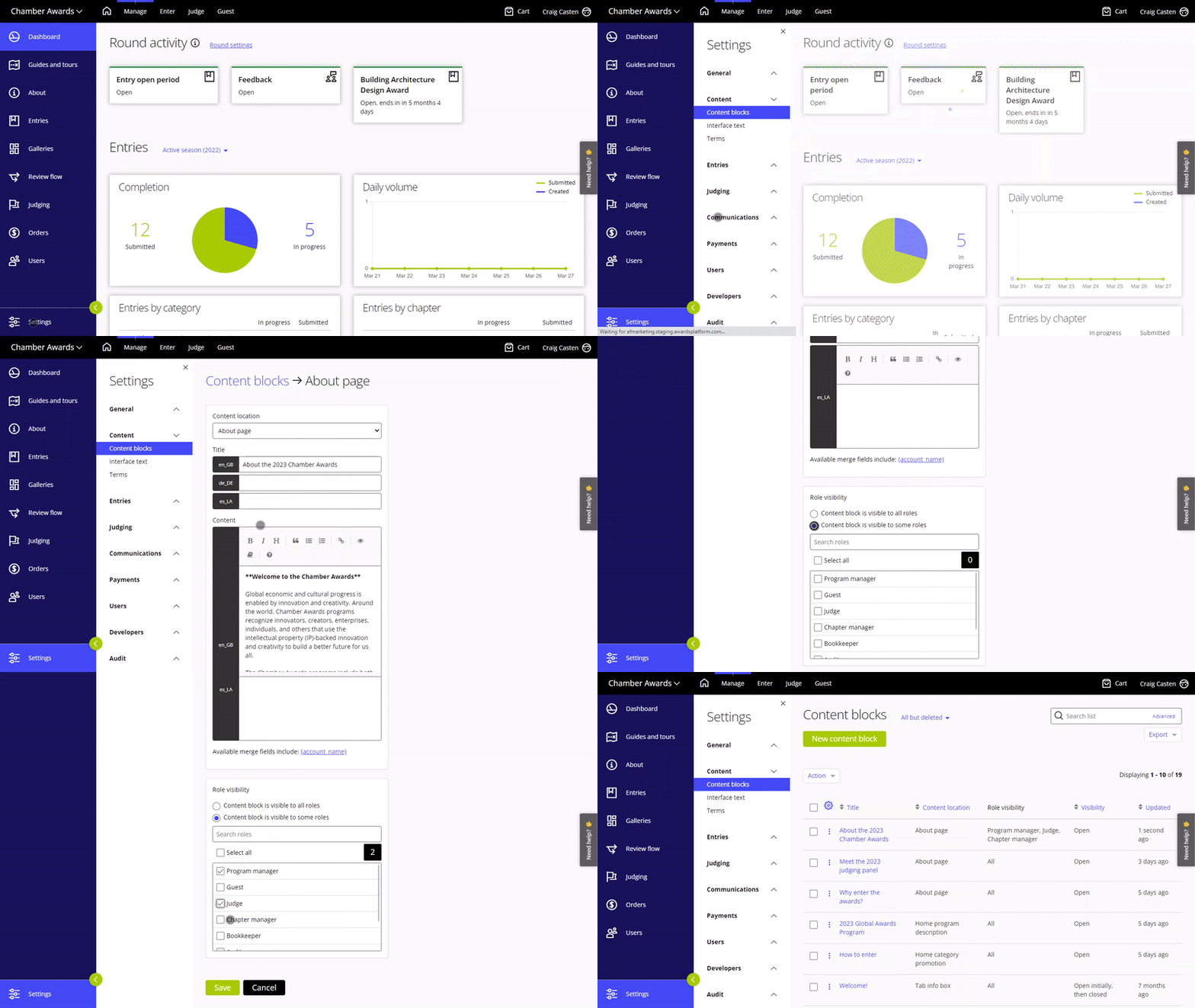
To double check whether your About page content will be visible on the home page, navigate to Settings > Content blocks, then click into an About page content block and scroll all the way down to the bottom of the page. You will see an area dealing with role visibility.
If the role visibility is set to be visible to all roles, your About page content block will be shown on the home page.
To remove this content block from the home page, simply select content block is visible to some roles and then select who should be able to see it. Please be careful not to select the guest role if you don’t want to share this with the public.
As per the below:
And remember, you can have as many About page content blocks as you like, so you can promote, share information, declare winners (or show off past winners), elevate your judges and so much more! The opportunities are endless.
Home program description (Login page content block)
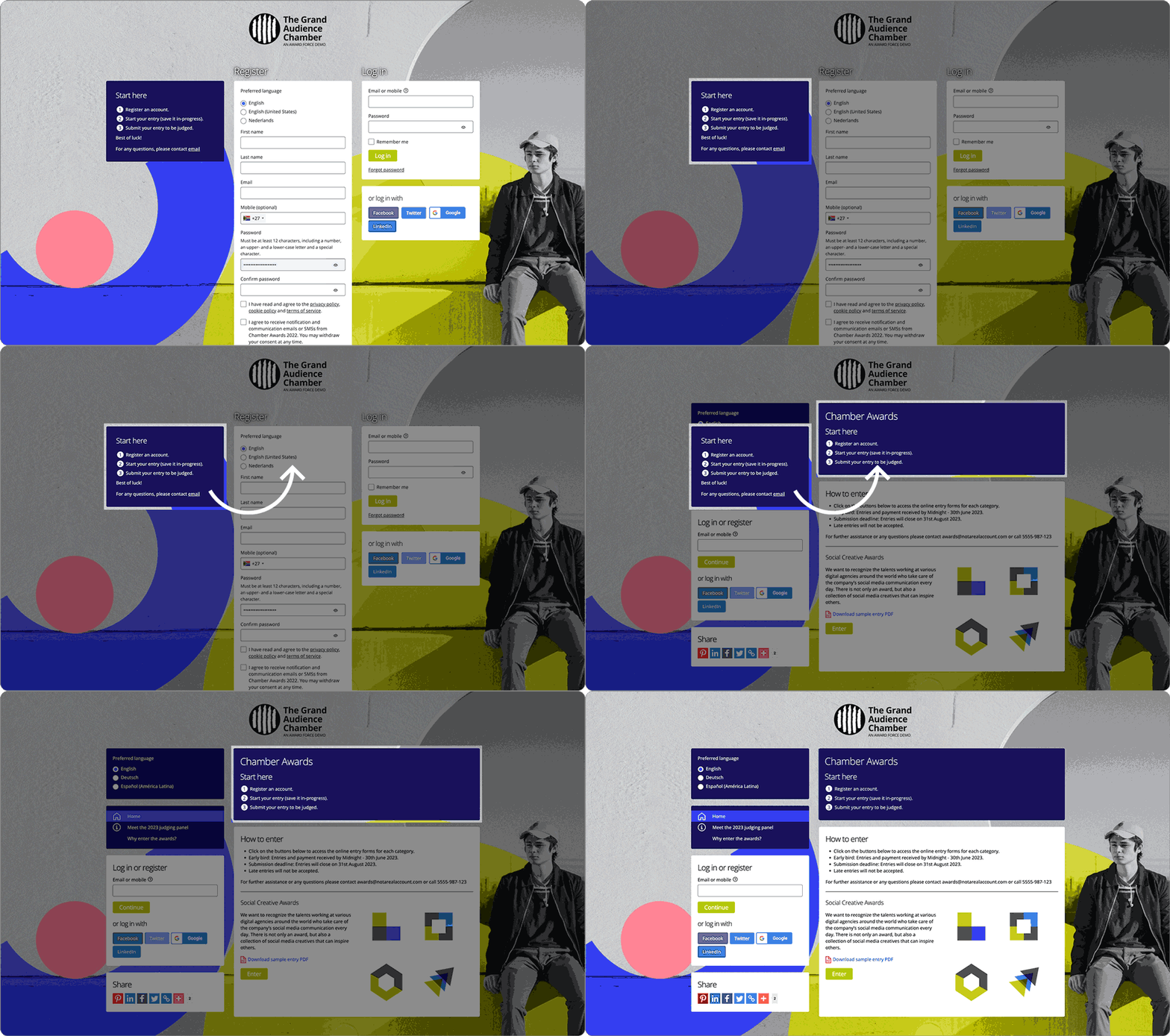
Apart from a new name, the home program description content block will move to the right hand side of the screen and be given more horizontal space.
As you can see below, the default content does not look terrible in the new layout, but it is worth double checking how your current “login page” content block will look when the home page upgrades are released.
Closing
The new home page experience is due for release within the next few weeks, so please keep an eye out for it!
In the meantime, if you need anything at all, please feel free to contact us via our Help Centre and one of our friendly team will get back to you as fast as they can.
We hope you enjoy the new home page experience!
With thanks,
The Award Force team