
That’s no hyperbole. Since the start of last year, we’ve introduced over 130 improvements to the platform, including more than 30 new major features.
New major features like the drag-and-drop form builder, new views (like Manage judging) and the new eligibility screener have undoubtedly made Award Force an even better awards solution.
And we are nowhere near done yet!
We know we can be even better. And we will be.
Our responsibility to you
With this lightspeed rate of change, our challenge is to ensure that Award Force remains as intuitive as possible. That you, our client and software user, are best positioned to maximise the value and utility of what Award Force has to offer.
And with so many new features, views and functional components, we’ve decided the time is right for us to introduce a better way to navigate your account. Not just to accommodate the features we’ve introduced to date. But the new features we’ll introduce in the future.
Some context
As you know, our software offers a single location for your entrants, judges and program management team to access your program, and using some clever roles and permissions – shows/hides views that are appropriate for each role.
That’s made it nice and clear for your entrants and judges who only have access and visibility to a few views. But for program managers and their teams, who generally have access to a lot more – it’s becoming increasingly difficult to discern what menu items are for managing a program – and what menu items are relevant to entrants and judges.
Introducing: Workspaces
In the next few weeks, we’ll introduce what we call “Workspaces”.
Workspaces are role specific, and logically separate manager, entrant and judges views and functionality. To access these Workspaces, we’ve created a new navigation alongside your account name, aptly labelled Manage, Enter and Judge.
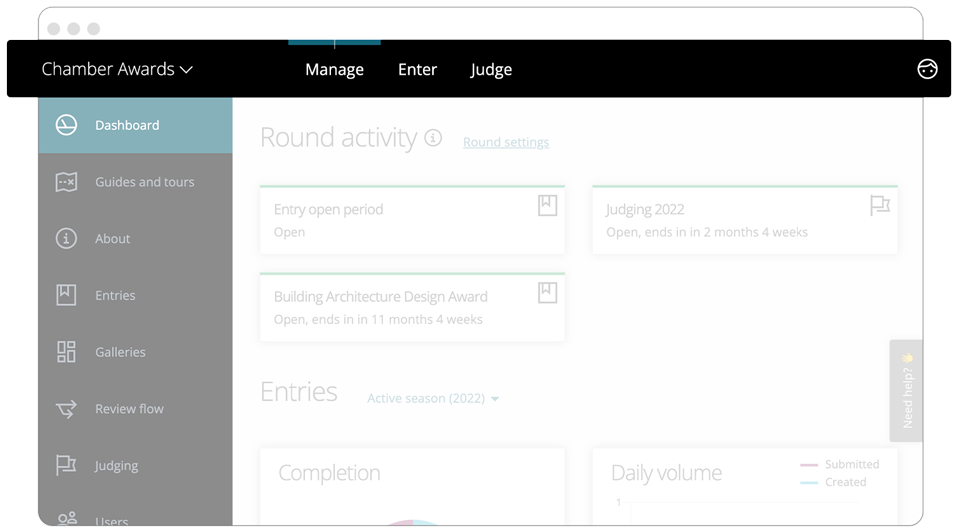
Note: The introduction of workspaces will not impact what you or your program participants are currently able to do and see. The only change is in how the respective views are grouped and how the left hand menu (the main navigation) responds to which workspace you are in.
The manager workspace
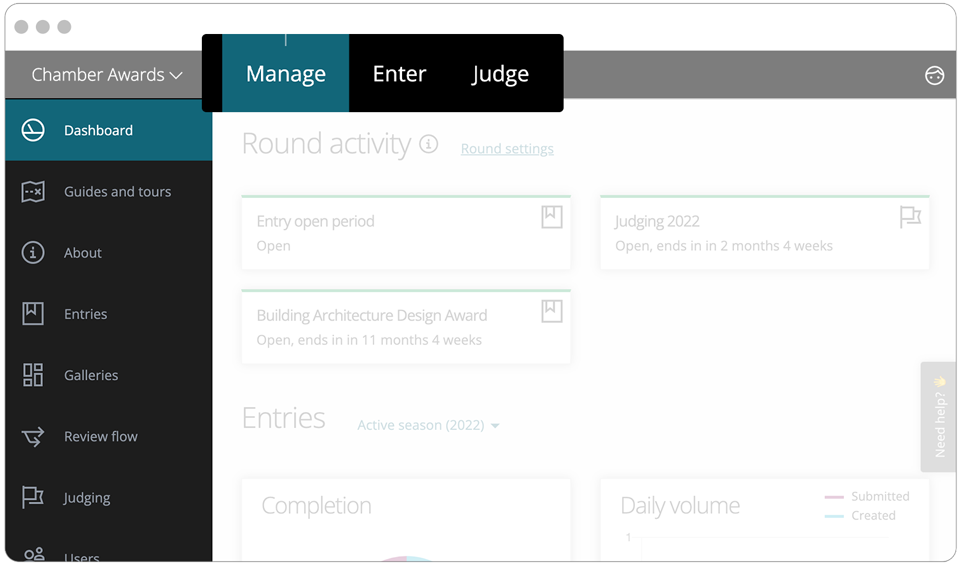
Accessed by clicking Manage in the top menu and for exclusive use by program managers and their team, the manager workspace will contain all of the configuration settings and program management views and functionality.
The left hand menu will only contain links to views available to the program manager and their team.
The entrant workspace
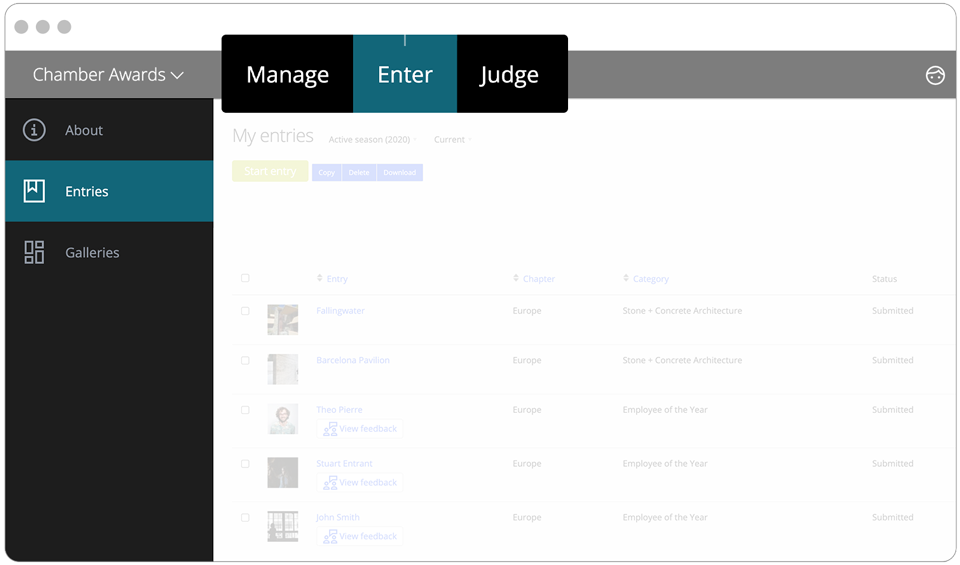
Accessed by clicking Enter in the top menu and for use by entrants, the entrant workspace will contain all the current and future views and functionality otherwise required by an entrant to create and submit their entry. If enabled, they’ll also see a menu link to the about page.
The left hand menu will only contain links to views relevant to the entrant role.
Important notes:
- If no “About” page content is present – there is no need for a left hand menu and it will be hidden for a better user experience.
- Entrants will not see links to either the manager or judge workspace in the top menu (unless they have been provided a judge or program/chapter manager role).
- Program managers will have access to this workspace in order to test the entrant experience and see what an entrant might see in the process of applying to your program opportunities.
The judge workspace
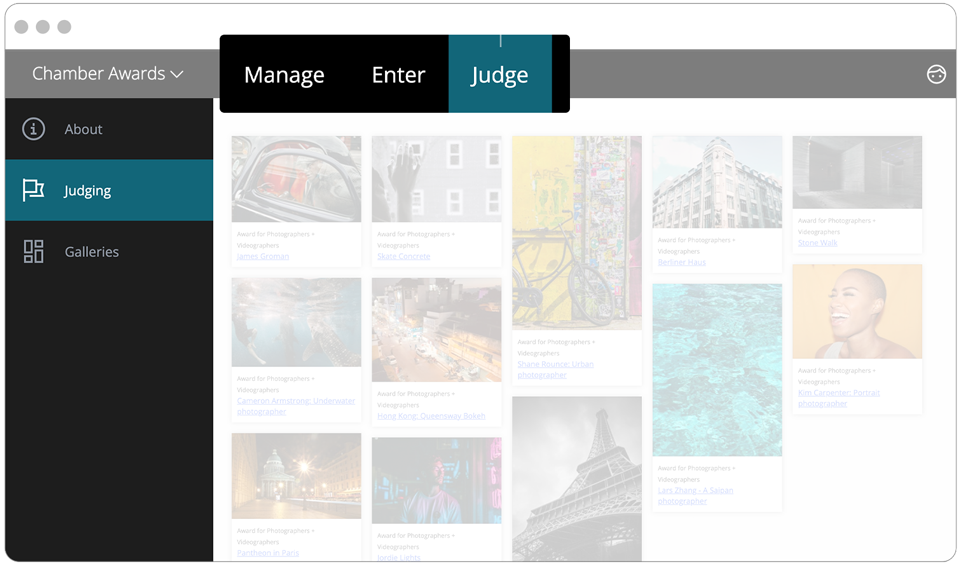
Accessed by clicking Judge in the top menu and for use by judges, the judge workspace will contain all the current and future views and functionality required by a judge in your program. If enabled, they’ll also see a menu link to the about page and gallery.
The left hand menu will only contain links to views relevant to the judge.
Important notes:
- If there is only one judging round enabled and neither a gallery nor any about content configured – there is no need for a left hand menu and it will be hidden for a better user experience.
- Judges will not see links to either the manager or entrant workspace in the top menu.
- Program managers will have access to this workspace in order to test the judging experience and see what a judge might see in the process of adjudicating entries to your program.
Closing
That’s it! As you can tell, we’ve not changed how views or their respective functionalities work, we’ve just grouped them by role. More clarity for you and your program management team and a better user experience all round.
As soon as the new navigation is available for use, we’ll be sure to notify you. In the meantime, we welcome any feedback and trust you’re as excited for this new evolution as we are. It only gets better from here.
With thanks,
The Award Force team